
Master CS:GO FPS monitoring with console commands, Steam overlay, and performance optimization strategies
Why FPS Monitoring Matters in Competitive CS:GO
In Counter-Strike: Global Offensive, maintaining optimal frame rates is crucial for competitive performance. Unlike many other FPS titles, CS:GO’s gameplay mechanics are heavily dependent on consistent frame delivery, where higher FPS translates directly to smoother aiming, more responsive controls, and reduced input lag. Professional players often prioritize frame rate stability over visual fidelity, as even minor fluctuations can impact shot accuracy during critical engagements.
When your frame rate drops below your monitor’s refresh rate, you experience screen tearing and stuttering that can disrupt your aim timing. Consistent high FPS ensures that enemy movements appear fluid and your crosshair placement remains precise. Many elite players maintain frame rates well above 200 FPS, even on 144Hz monitors, to guarantee the freshest possible frame data during fast-paced firefights.
Enabling Developer Console for Advanced Monitoring
Accessing CS:GO’s developer console requires enabling it through the game’s settings menu first. Navigate to the Settings option from the main menu, then select the Game tab where you’ll find the Developer Console toggle. Switch this setting to ‘YES’ to activate console access, which unlocks powerful diagnostic tools beyond basic FPS monitoring.
Many players overlook this step and miss out on the console’s comprehensive capabilities. Once enabled, pressing the tilde (~) key during gameplay brings up the command interface. Note that some keyboard layouts may require using a different key, typically located above the Tab key. If the console doesn’t appear, verify your settings and ensure you’re not in a restricted game mode that disables console access.
Essential Console Commands for FPS Display
The cl_showfps command provides the most straightforward method for monitoring your frame rate. After opening the console with the tilde key, type ‘cl_showfps 1’ and press Enter to activate the display. This places a compact FPS counter in the top-left corner of your screen, showing real-time frame rate data without cluttering your gameplay view. The number displayed represents frames rendered per second, with higher values indicating better performance.
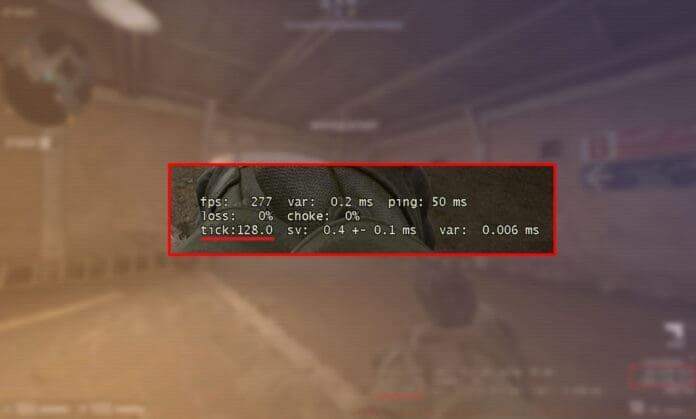
For more detailed performance analytics, use the ‘net_graph 1’ command instead. This comprehensive display shows not only FPS but also network statistics including ping, packet loss, server tick rate, and interpolation data. The net_graph appears at the bottom of your screen and provides crucial information for diagnosing both hardware performance issues and network connectivity problems that could affect your gameplay experience.
When you no longer need these displays, simply enter ‘cl_showfps 0’ or ‘net_graph 0’ respectively to disable them. Many competitive players keep these tools active during practice sessions but disable them during official matches to minimize visual distraction. The net_graph command particularly helps identify whether performance issues stem from your hardware capabilities or internet connection quality.
Steam Overlay FPS Counter Alternative
For players who prefer a simpler approach without console commands, Steam’s built-in FPS counter offers an accessible alternative. Activate this by pressing Shift+Tab to open the Steam overlay, then navigate to Settings > In-Game > In-Game FPS Counter. Here you can enable the display and choose from four positioning options: Top-Left, Top-Right, Bottom-Left, or Bottom-Right.
This method provides less detailed information than console commands but requires no technical knowledge to implement. The Steam FPS counter includes a high-contrast color option that makes it easily visible against various background colors, which is particularly useful on brightly lit maps. However, it lacks the network diagnostics and detailed performance metrics available through the net_graph command, making it better suited for casual monitoring rather than serious performance optimization.
Advanced Performance Monitoring Strategies
Serious CS:GO players should monitor both FPS and network statistics simultaneously to identify performance bottlenecks. The ideal setup involves using net_graph during practice sessions to establish performance baselines, then switching to cl_showfps or the Steam counter during competitive matches for minimal distraction. Track your average FPS across different maps, as some environments are more demanding than others due to complex geometry and detailed textures.
Common performance issues include sudden FPS drops during smoke grenade deployments or when multiple players are visible. If you experience consistent frame rate problems, consider lowering shadow quality, reducing anti-aliasing, or disabling VSync. Network issues manifest as packet loss percentages above 0% or ping spikes exceeding 50ms. For optimal competitive performance, maintain at least 150+ FPS on standard 144Hz monitors and 200+ FPS for 240Hz displays.
Advanced users can create custom autoexec.cfg files with preset console commands that automatically activate their preferred monitoring displays when launching the game. This saves time and ensures consistent configuration across gaming sessions. Remember that while monitoring tools are valuable, they should enhance rather than distract from your core gameplay focus during important matches.
No reproduction without permission:GameCDjnh » Guide to Enable the FPS counter and other Parameters in CS:GO Master CS:GO FPS monitoring with console commands, Steam overlay, and performance optimization strategies