
TL;DR
- Verify Steam game files integrity to fix corrupted installation issues
- Disable Frame Generation to eliminate crashes despite performance trade-offs
- Turn off GPU-intensive upscaling for immediate stuttering reduction
- Remove PlayStation Overlay completely through system folder deletion
- Update graphics drivers and adjust Windows performance settings
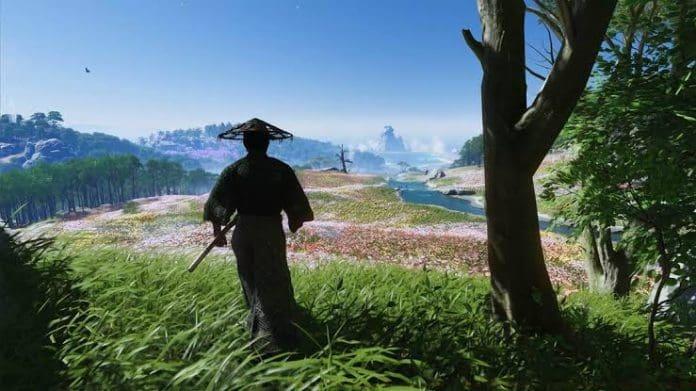
Sony’s acclaimed samurai epic Ghost of Tsushima: Director’s Cut has made a spectacular transition to PC platforms, immediately capturing player attention with record-breaking concurrent user counts exceeding 77,000 players. This impressive launch demonstrates the game’s widespread appeal but has also revealed several technical challenges that can disrupt the immersive feudal Japan experience.
Many players encounter frustrating performance problems including sudden application crashes, inconsistent frame rates, and persistent stuttering during critical gameplay moments. These issues typically stem from multiple factors including graphics settings conflicts, background application interference, and system resource allocation problems. Understanding the root causes is essential for implementing effective solutions.
The transition from console optimization to PC variability introduces unique challenges that require specific troubleshooting approaches. Fortunately, systematic problem-solving methods can resolve most performance issues without compromising visual quality significantly.
Steam’s built-in file verification represents the foundational first step in troubleshooting Ghost of Tsushima performance problems. This process scans all game installation files against Valve’s master servers, automatically identifying and replacing corrupted, missing, or modified game assets that commonly cause crashes and instability.
- Navigate to your Steam Library and right-click on Ghost of Tsushima: Director’s Cut
- Select Properties followed by the Installed Files tab
- Click “Verify integrity of game files” and allow the scan to complete
- The process typically takes 5-15 minutes depending on your storage speed
- Restart Steam completely after verification finishes
Advanced users should consider performing this verification after major system updates, driver installations, or when adding new hardware components. The verification process specifically addresses issues with game executables, configuration files, and critical game assets that directly impact stability. For persistent problems, a complete uninstall and fresh installation may be necessary, though this should be considered a last resort after exhausting other options.
Frame Generation technology represents a double-edged sword for Ghost of Tsushima performance. While designed to dramatically improve perceived smoothness by inserting AI-generated frames between native rendered frames, this feature frequently conflicts with the game’s rendering pipeline, causing catastrophic crashes and severe stuttering episodes.
- Access the in-game Settings menu and select Display options
- Locate the Frame Generation toggle (typically under Advanced Graphics)
- Disable this feature completely and apply changes
- Restart the game to ensure settings take full effect
- Monitor performance stability before considering re-enablement
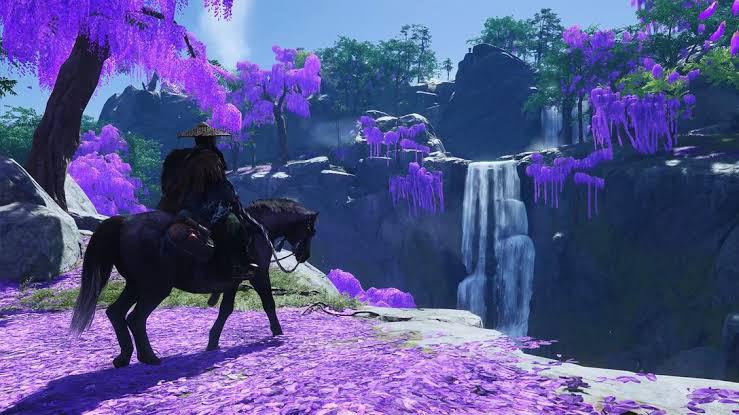
Players sacrificing Frame Generation should compensate by adjusting traditional graphics settings. Reducing shadow quality, lowering vegetation density, and decreasing draw distances can recover performance while maintaining visual fidelity. Consider exploring our Weapons Unlock guide for optimization strategies that translate well across different game engines and performance profiles.
Modern upscaling technologies including DLSS, FSR, and XeSS significantly increase GPU utilization in Ghost of Tsushima, often pushing hardware beyond stable operating parameters. While these features enhance image quality through sophisticated reconstruction algorithms, they demand substantial computational resources that can overwhelm systems, particularly during intense combat sequences with multiple particle effects.
- Open Display settings within the game’s options menu
- Disable all upscaling features temporarily for troubleshooting
- Test native resolution performance as your baseline
- Gradually re-enable upscaling at quality modes if stability permits
- Monitor GPU temperatures and usage during gameplay sessions
For players experiencing persistent issues, maintaining native resolution with adjusted quality presets often provides the optimal balance between visual appeal and performance stability. Reducing texture filtering, disabling motion blur, and lowering anti-aliasing can recover significant performance headroom. These fundamental optimization principles apply broadly across modern titles, similar to strategies discussed in our comprehensive Complete Guide to PC gaming performance.
The PlayStation Overlay integration represents one of the most common yet overlooked sources of Ghost of Tsushima performance problems on PC. This background service, designed to provide social features and platform integration, frequently conflicts with game rendering, causing intermittent stuttering and sudden application closures, particularly during online functionality attempts.
- Open File Explorer and navigate to your primary system drive (typically C:)
- Access the ProgramData directory (hidden by default – enable hidden items view)
- Locate and open the Sony Interactive Entertainment Inc folder
- Identify and delete the PSPC_SDK directory completely
- Launch Ghost of Tsushima in Steam Offline Mode to prevent reinstallation
Alternative methods include modifying Windows registry entries or creating symbolic links to redirect overlay functionality, though these advanced techniques carry additional risk. For most users, the directory deletion method provides the most reliable solution. The overlay removal typically resolves conflict issues similar to those encountered when optimizing game Class Guide configurations in other titles, where background services interfere with core gameplay functionality.
After implementing this fix, expect slightly longer initial load times as the game adjusts to the missing overlay components, though overall stability should improve dramatically during actual gameplay sessions.
Beyond the primary troubleshooting methods, several advanced optimization techniques can further enhance Ghost of Tsushima stability and performance. These approaches address system-level configurations and hardware-specific optimizations that complement the core fixes already implemented.
Graphics driver management represents a critical factor often overlooked by players. Ensure you’re using the latest stable drivers from your GPU manufacturer, but avoid beta releases that may introduce additional instability. Perform clean installations using Display Driver Uninstaller (DDU) in Safe Mode to eliminate configuration conflicts from previous versions.
Windows performance settings significantly impact game stability. Adjust power management to High Performance mode, disable fullscreen optimizations for the game executable, and ensure hardware-accelerated GPU scheduling is enabled for NVIDIA users. Background application management remains equally important—close resource-intensive applications like web browsers, streaming software, and communication tools during gameplay sessions.
For persistent stuttering issues, consider capping frame rates slightly below your display’s maximum refresh rate using either in-game limiters or third-party tools like RTSS. This reduces GPU load variance and creates more consistent frame pacing. Monitoring tools like HWiNFO64 can help identify thermal throttling or power delivery issues that might contribute to instability during extended gameplay sessions.
Action Checklist
- Verify Steam game files integrity through Properties menu
- Disable Frame Generation in Display settings completely
- Turn off all upscaling features temporarily for testing
- Remove PlayStation Overlay by deleting PSPC_SDK folder
- Update graphics drivers with clean installation
- Adjust Windows performance settings and background apps
No reproduction without permission:GameCDjnh » Ghost of Tsushima PC Crash Fix: How to Resolve Stuttering Issues on Steam Expert solutions to fix Ghost of Tsushima PC crashes and stuttering with proven troubleshooting methods