
Master CS:GO main menu customization with expert WebM conversion and file replacement techniques
Understanding CS:GO Background Customization
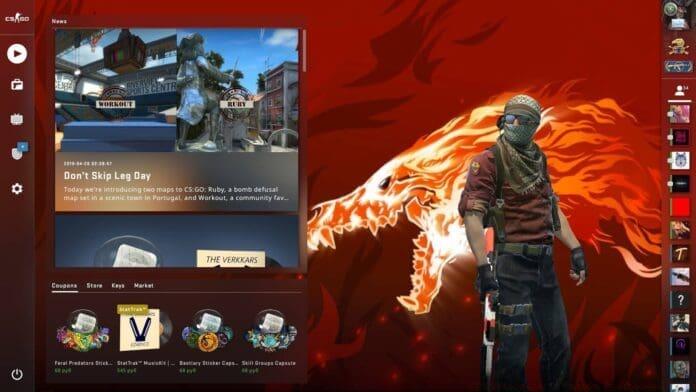
The May 27, 2020 CS:GO update introduced a highly anticipated feature allowing players to personalize their main menu backdrop with scenery from popular maps including Anubis, Blacksite, Chlorine, Cobblestone, Nuke, Phoenix Facility, and Vertigo. This addition was met with widespread enthusiasm from the player base, who quickly embraced the creative possibilities.
Counter-Strike enthusiasts have consistently demonstrated ingenuity in modifying game elements ranging from character models and interface text to weapon aesthetics and audio effects. The community’s technical proficiency extends to map alterations and visual enhancements, making background customization a natural extension of this player-driven innovation culture.
Before initiating the background modification process, understanding WebM format conversion is crucial. WebM represents an open-source multimedia container specifically designed for web use, offering efficient compression while maintaining quality. Your source material must undergo conversion to this format, with numerous free online converters readily available. Create two additional duplicates of your converted WebM file, resulting in three identical copies for the replacement procedure.
Step-by-Step Customization Process
- Launch Steam client and access your Game Library. Perform a right-click on Counter-Strike: Global Offensive, choose Properties, then navigate to the Local Files section. Select ‘Browse Local Files’ and proceed through the directory chain: Counter-Strike Global Offensive → csgo → panorama → videos.
- As a critical safety precaution, duplicate all current files from this directory to a separate backup location. This ensures you can restore original functionality if needed.
- For this demonstration, we’re substituting Cobblestone background elements. Initiate by removing the cbble, cbble540p, and cbble720p files from the videos directory.
- Transfer your three prepared WebM files into this folder and systematically rename them to match the deleted originals: cbble, cbble540p, and cbble720p correspondingly.
- Launch Counter-Strike: Global Offensive and access Settings. Navigate to Video settings and choose Cobblestone from the Main Menu Background Scenery selection menu.
Advanced Tips and Best Practices
Players can employ diverse media sources for their custom backgrounds, including community-created maps, animated sequences, or memorable esports moments like championship victories. For optimal results, ensure your source video has a 16:9 aspect ratio and sufficient resolution (minimum 1920×1080).
Avoid common mistakes such as using incorrect file formats or failing to create all three resolution variants. The 540p and 720p versions ensure proper display across different menu states and loading sequences. Test your custom background thoroughly before playing competitive matches to avoid unexpected performance issues.
Advanced users can create seamless loop animations or implement subtle particle effects that enhance the menu experience without impacting game performance. Consider file size optimization—backgrounds exceeding 50MB may increase loading times. For the best visual results, use videos with consistent lighting and avoid rapid brightness changes that could cause eye strain during extended menu sessions.
No reproduction without permission:GameCDjnh » CSGO Panorama UI Custom Background Guide Master CS:GO main menu customization with expert WebM conversion and file replacement techniques