
TL;DR
- Fullscreen mode and native resolution provide maximum performance and responsiveness
- NVIDIA Reflex Low Latency with Boost significantly reduces input lag for competitive play
- Low shadow and reflection settings free up GPU resources for higher frame rates
- Custom graphics quality allows precise control over performance-critical settings
- Proper refresh rate configuration ensures smooth visual experience during fast-paced combat
As XDefiant positions itself as a serious contender in the tactical shooter arena, often compared to titles like Battlefield 6, achieving optimal performance becomes crucial for competitive gameplay. Unlike slower-paced military simulations, XDefiant’s fast-paced combat demands high frame rates and minimal input lag to maintain competitive advantage. Your hardware’s ability to deliver consistent performance can significantly impact your reaction times and overall effectiveness in firefights.
Many players underestimate how performance translates directly to gameplay success. Higher frame rates don’t just make the game look smoother—they provide more up-to-date visual information and reduce the delay between your actions and their on-screen results. This becomes particularly important during intense Conquest-style objective battles where situational awareness and quick reflexes determine victory.
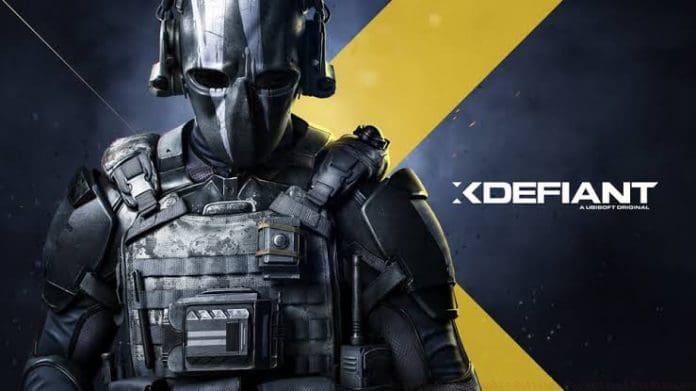
Starting with display configuration, Fullscreen mode should always be your first selection as it provides exclusive access to your GPU resources, reducing background interference and latency. Unlike borderless windowed modes that must compete with desktop composition, fullscreen dedicates maximum resources to XDefiant alone. This becomes especially noticeable during high-intensity combat scenarios where every millisecond counts.
Native resolution ensures you’re not introducing additional scaling processing that can add input lag, while setting your refresh rate to the maximum supported by your monitor provides more frequent screen updates. For players transitioning from other tactical shooters like BF6, these fundamental settings form the foundation of responsive gameplay that experienced competitors rely upon.
Moving to advanced graphics settings, the balance between visual fidelity and performance becomes critical. NVIDIA Reflex Low Latency represents one of the most significant advancements for competitive gaming, reducing system latency by up to 50% in some scenarios. When combined with Boost mode, it ensures your GPU maintains higher clock speeds during CPU-bound situations, preventing frame time inconsistencies that can disrupt aim precision.
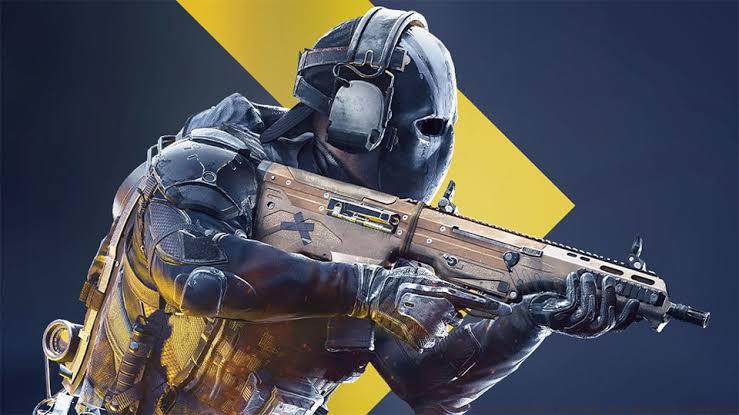
Shadow and reflection settings represent some of the easiest performance gains. These visual effects consume substantial GPU resources while providing minimal tactical advantage. By reducing these settings to Low, you reallocate precious rendering budget toward maintaining higher frame rates during explosive combat situations. This optimization approach mirrors professional settings used in competitive FPS titles where performance consistently outweighs visual spectacle.
Beyond the basic settings, several advanced strategies can further enhance your XDefiant experience. Many players make the critical mistake of prioritizing visual quality over performance, not realizing that higher settings can actually create visual noise that obscures enemy movement. The shimmering effects from high-quality reflections or detailed shadows can mask opponent positioning, particularly in complex environments like urban combat zones.
Professional players typically disable most post-processing effects entirely, as these introduce additional rendering passes that increase latency. If you’re building your loadout while optimizing performance, consider consulting our class selection guide for complementary strategies. Different character abilities may benefit from specific performance optimizations—snipers might prioritize stable frame rates for precise shots, while assault classes may value consistent performance during close-quarters engagements.
System-level optimizations include ensuring your GPU drivers are updated specifically for XDefiant, disabling background applications that consume resources, and configuring Windows for maximum gaming performance. Many competitive players also cap their frame rates slightly below their monitor’s maximum refresh rate to maintain consistent frame times and reduce tearing without introducing significant input lag from V-Sync solutions.
Action Checklist
- Set display mode to Fullscreen for exclusive GPU access
- Enable NVIDIA Reflex Low Latency with Boost for competitive play
- Reduce shadow and reflection settings to Low to free GPU resources
- Disable triple buffering and set resolution scale to 100% native
- Configure custom graphics quality and monitor refresh rate optimization
No reproduction without permission:GameCDjnh » Best Xdefiant Graphic Settings for Optimal Performance Optimize XDefiant PC performance with expert settings for maximum FPS and competitive advantage