
Master CS:GO resolution settings with pro insights, performance optimization, and practical setup strategies
Why Pro Players Choose Non-Standard Resolutions
Selecting the ideal gaming peripherals can be challenging, but understanding resolution preferences separates casual players from competitive experts. Professional CS:GO competitors like w0xic, es3tag, and gla1ve deliberately avoid standard 1920×1080 resolutions for strategic advantages. Analyzing professional setups provides invaluable insights for optimizing your own configuration.
The preference for lower resolutions stems from several competitive benefits. Reduced resolution settings create larger character models on screen, making enemy targets easier to spot and track during intense firefights. Many professionals report improved frame rate consistency with 1280×960 and 1024×768 settings, ensuring smoother gameplay during critical moments. The stretched aspect ratios also alter mouse sensitivity perception, allowing for more precise aim adjustments.
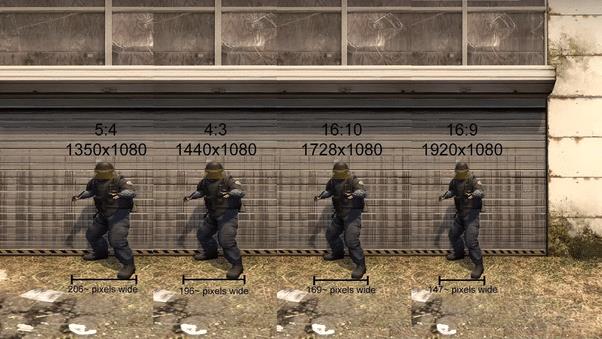
Understanding the stretched versus black bars distinction is crucial for optimal setup. Stretched resolution horizontally expands the game image to fill your monitor, creating wider character models that are easier to hit. Black bars maintain the game’s original aspect ratio with vertical bars on the sides, preferred by players wanting consistent mouse movement without horizontal distortion. Each approach affects crosshair placement and flick shot accuracy differently.
Resolution Statistics: What the Data Reveals
Comprehensive analysis of professional player configurations reveals clear resolution preferences. Among 421 surveyed professional CS:GO competitors, 1280×960 emerges as the dominant choice with 37% adoption rate. This 4:3 stretched resolution provides the ideal balance between visual clarity and performance optimization for competitive play.
The second most popular configuration, 1024×768, captures 27% of the professional player base. This resolution offers even higher frame rates and more pronounced character model stretching, though at the cost of reduced visual detail. Surprisingly, the standard 1920×1080 resolution only appears in 9% of professional setups, demonstrating that native monitor resolution isn’t necessarily optimal for competitive performance.
Resolution preference trends show interesting patterns across different player roles. Entry fraggers often prefer more extreme stretched resolutions for target acquisition advantages, while support players may choose higher resolutions for better visual information. Understanding these statistical trends helps players make informed decisions about their own setup preferences based on their playstyle and role within a team.
Advanced Setup & Optimization Techniques
Configuring your resolution properly requires understanding both in-game settings and graphics driver options. The majority of professional players utilize stretched resolution configurations, while others prefer Black bars display mode. Both options can be configured through the “Adjust Desktop Size and position” section in the NVIDIA Control Panel, with specific scaling options affecting gameplay feel.
For NVIDIA graphics card users, accessing the Control Panel and navigating to Display settings is the first step. Select “Adjust desktop size and position” and choose between “Aspect ratio” for black bars or “Full-screen” for stretched presentation. The “Perform scaling on” option should typically be set to “GPU” for consistent results across different applications and games.
Monitor scaling technology also impacts resolution performance. Some displays handle non-native resolutions better than others, affecting input lag and response times. Testing your specific monitor with different resolution settings helps identify the optimal configuration for your hardware setup. Many professional players experiment with multiple resolutions during practice sessions before settling on their preferred setup.
Crosshair visibility changes significantly with different resolutions. Lower resolutions often make crosshairs appear larger and more prominent, while higher resolutions provide sharper, more precise crosshair rendering. Adjust your crosshair settings after changing resolutions to maintain consistent visual reference points during gameplay.
Common Mistakes and Performance Pitfalls
Many players encounter issues when transitioning between resolutions without proper preparation. Abrupt resolution changes can disrupt muscle memory and aim consistency, leading to temporary performance declines. Gradually acclimating to new resolutions through deathmatch and practice sessions helps maintain competitive performance during adjustment periods.
Aspect ratio confusion represents another common pitfall. Players often misunderstand the relationship between resolution numbers and actual aspect ratios. For example, 1280×960 maintains a 4:3 aspect ratio, while 1920×1080 is 16:9. Understanding these relationships helps predict how the game will appear on your screen and how character models will be displayed.
Hardware limitations frequently impact resolution choices more than player preference. Lower-end systems may struggle with higher resolutions, forcing players to choose between visual quality and performance consistency. Testing frame rates across different resolutions helps identify the optimal balance for your specific system capabilities. Remember that consistent high frame rates often provide more competitive advantage than superior visual fidelity.
Resolution switching without corresponding sensitivity adjustment creates significant aiming inconsistencies. Since mouse movement perception changes with different aspect ratios and stretching, recalculating your effective sensitivity ensures consistent crosshair movement across resolution changes. Many professional players use sensitivity calculators to maintain identical cm/360 measurements regardless of resolution selection.
No reproduction without permission:GameCDjnh » Best Resolution for CSGO according to Pros Master CS:GO resolution settings with pro insights, performance optimization, and practical setup strategies