
Comprehensive guide to fixing ARC Raiders ARMR0002 error with advanced troubleshooting techniques and prevention strategies
Understanding the ARMR0002 Matchmaking Error
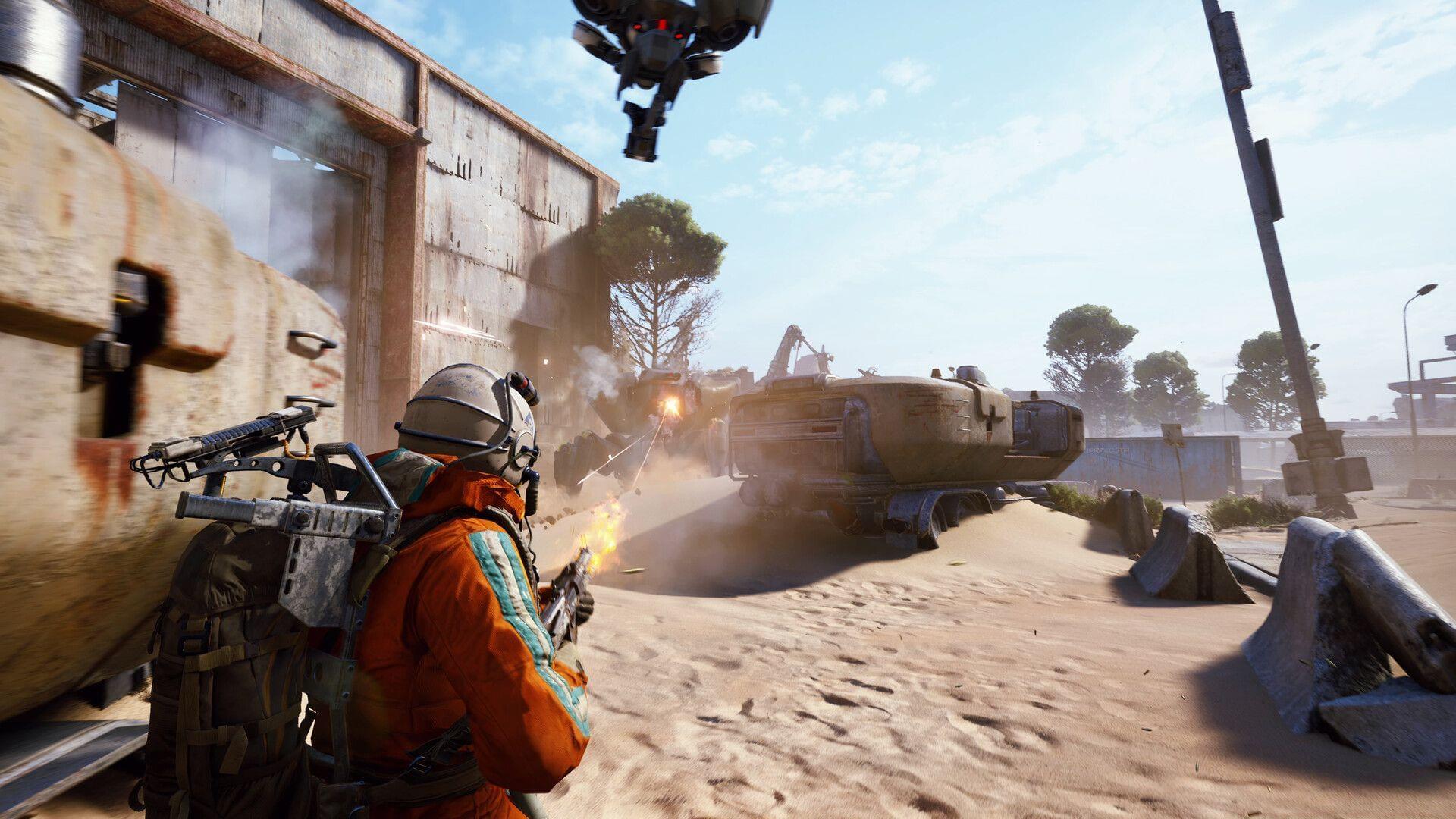
ARC Raiders has launched to generally positive reception with healthy player engagement, yet numerous users encounter the persistent ARMR0002 error code that blocks game access. This connectivity failure prevents matchmaking functionality and was previously observed during beta testing phases, indicating an unresolved underlying technical challenge.
The error typically manifests when players attempt to join multiplayer sessions, resulting in connection timeouts or authentication failures. Understanding that this isn’t an isolated incident but rather a systematic issue affecting multiple users can help manage frustration during troubleshooting.
Common symptoms include repeated matchmaking failures, sudden disconnections during lobby preparation, or complete inability to access online features. The persistence of this error across different network environments suggests it involves both client-side configuration and potential server-side authentication protocols.
Immediate Fixes: Quick Solutions to Try First
Before delving into complex network configurations, begin with fundamental system refresh procedures. A comprehensive system restart clears temporary cache files and resets network stacks that might be causing connection conflicts with ARC Raiders’ matchmaking services.
Execute a full computer shutdown and restart sequence, then relaunch the game with Administrator privileges enabled. This elevated access level ensures the game has necessary permissions to modify network settings and access system resources that might be restricted under standard user accounts.
For network-related issues, power cycle your router by disconnecting it completely from power for at least 60 seconds. This duration allows all internal capacitors to discharge fully and clears transient network routing tables that might contain corrupted data affecting game connectivity.
Related Reading: Complete troubleshooting for ARC Raiders Xbox connectivity problems and resolution methods
Consider switching to a wired Ethernet connection if you’re currently using Wi-Fi, as this eliminates wireless interference variables and provides more stable packet transmission essential for real-time game matchmaking protocols.
Advanced Network Configuration
When basic troubleshooting proves insufficient, DNS configuration changes often resolve persistent connectivity problems. Switching to reliable public DNS servers like Google’s infrastructure can bypass ISP-level routing issues that might interfere with ARC Raiders’ matchmaking servers.
To implement Google Public DNS, navigate through Control Panel to Network and Internet settings, then access Network and Sharing Center. Select your active connection (Ethernet or Wi-Fi) and examine its Properties to locate Internet Protocol Version 4 (TCP/IPv4) settings.
Configure the DNS settings manually by entering 8.8.8.8 as your primary DNS server and 8.8.4.4 as the secondary alternative. This bypasses potentially problematic ISP DNS servers that might have outdated records for ARC Raiders’ game servers.
Different router manufacturers utilize unique administrative interfaces, so consult your specific model’s documentation for precise reset procedures. Many modern routers allow soft resets through web interfaces accessible via standard IP addresses like 192.168.1.1 or 192.168.0.1, but manufacturer websites provide model-specific guidance.
For advanced users, consider configuring Quality of Service (QoS) settings on your router to prioritize gaming traffic, ensuring ARC Raiders matchmaking packets receive transmission priority over other network activities.
Game File Integrity and System Optimization
Corrupted or missing game files frequently cause matchmaking errors in online games. Both Steam and Epic Games platforms include built-in verification tools to identify and replace damaged game components.
On Steam, access your Library, right-click ARC Raiders, and select Properties. Navigate to the Installed Files section and initiate the ‘Verify integrity of game files’ process. This cross-references your local installation with the master server and automatically downloads any missing or altered files.
Epic Games Launcher users should locate ARC Raiders in their Library, click the three-dot menu adjacent to the game title, select Manage, and choose the Verify option. The process functions similarly to Steam’s verification but uses Epic’s own integrity checking system.
Further Reading: Comprehensive analysis of ARC Raiders PC crash causes and resolution techniques
Additionally, ensure your system meets the minimum requirements for ARC Raiders and that graphics drivers are updated, as outdated drivers can sometimes interfere with game network functionality through incompatible low-level system calls.
Clear your game cache through the game’s settings menu or by manually deleting temporary files in the game’s installation directory, as accumulated cache data can sometimes contain corrupted matchmaking information.
Proactive Prevention and Advanced Solutions
Many players inadvertently complicate troubleshooting by applying multiple fixes simultaneously, making it impossible to identify the actual solution. Always implement one change at a time and test matchmaking functionality between modifications to isolate the effective fix.
Common mistakes include modifying DNS settings while also changing router configurations, or verifying game files while adjusting firewall settings. This scattershot approach creates confusion about which action actually resolved the ARMR0002 error.
For persistent cases, examine Windows Firewall or third-party antivirus settings to ensure ARC Raiders has appropriate network access permissions. Security software sometimes misidentifies game traffic as suspicious and blocks matchmaking communication.
If all troubleshooting steps fail, the ARMR0002 error likely stems from server-side issues beyond user control. During peak play periods or immediately after updates, server overload can temporarily disrupt matchmaking services. Monitor official ARC Raiders social media channels and community forums for developer announcements about known issues and upcoming maintenance.
When server-side problems are confirmed, the only viable solution is patience while developers implement infrastructure improvements or deploy hotfixes to address underlying matchmaking service instability.
Expand your ARC Raiders knowledge:
- Complete guide to Blue Gate tunnels and access methods
- Dam Battlegrounds key locations and unlockable content
- ARC skill tree optimization: Strategic ability selection
- Weapon crafting and upgrade system mastery
- Preload specifications: Installation size across platforms
No reproduction without permission:GameCDjnh » ARC Raiders Error ARMR0002: Possible reasons and fixes Comprehensive guide to fixing ARC Raiders ARMR0002 error with advanced troubleshooting techniques and prevention strategies